
# Showing Content
Once your content is in collections, you can show it on your pages by binding components to fields. A bound heading shows the item's name, a bound image shows its photo, and so on. This page explains binding, the Markdown component, conditional visibility and classes, and how to use pages as CMS content.
# Binding Components to Fields
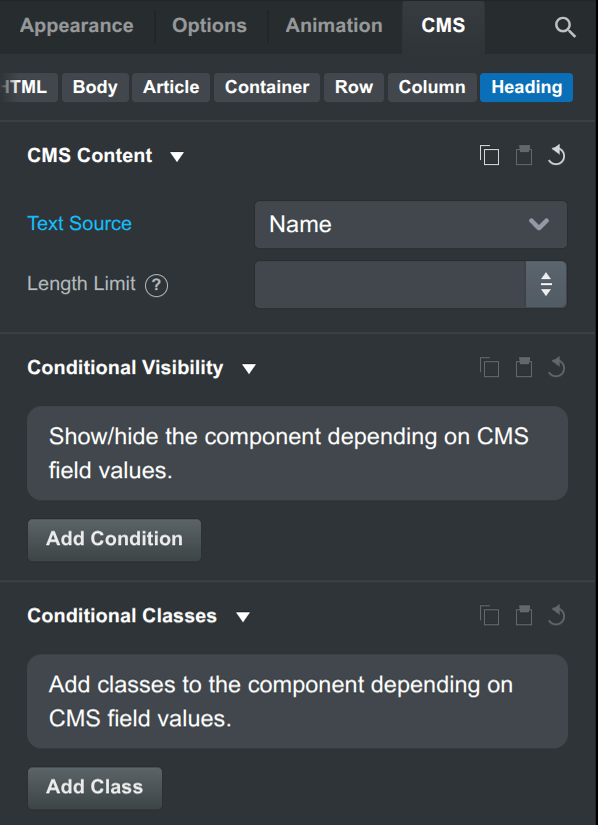
Select a component and open the CMS panel, next to Appearance, Options and Animation. The CMS Content group lists the properties of the component that can be bound, like its text, image source or link URL. Pick a field from the dropdown, and the component shows that field's value.
The fields come from the current item, which depends on where the component is:
- On a collection page template or an override page, it's the item the page is rendered for. On the stage, it's the item picked in the stage toolbar.
- Inside a CMS Loop, it's the loop item the component is in. Each item in the loop shows its own values.
- On any other page, it's the page's own CMS Options.
Each kind of property can be bound to fields of a matching type:
| Property | Components | Fields |
|---|---|---|
| Text Source | Headings, paragraphs, spans, badges, buttons and other text components | Text, Long Text, URL, Email, Phone, Number, Date |
| Image Source | Image | Image |
| URL Source | Links, buttons and other components with a URL | URL, Email, Phone, and Generated Page URL inside loops |
| Markdown Source | Markdown | Markdown |
| Date Source | Date | Date |
| Percentage Source | Progress Bar | Number |
When a property is bound, its value on the stage comes from the item, and the regular option for it (like the image's Source URL) is replaced. To unbind a property, set its dropdown back to Default.
Depending on the field type, the CMS panel shows extra options for the bound value:
- Length Limit shortens text fields to the given number of characters. This is useful for excerpts on cards.
- Date Format chooses how a Date field is shown as text, like
November 26, 2026. Dates are written in the page's language. - Number Format and Decimals choose how a Number field is shown.
# Linking to Item Pages
Inside a CMS Loop over a collection that generates pages, the URL Source dropdown has a Generated Page URL option. Bind a link or button to it to point it to the item's page, like a "Read more" button on a blog post card.
To make the whole loop item a link instead, set the loop's Item Tag to Link.
# Markdown
The Markdown component turns Markdown text into HTML, with headings, lists, links, images and the rest. It's the usual way to show the body of an article. Drop it on the page, and bind its Markdown Source to a Markdown field in the CMS panel.
In the Options panel you can style the HTML it produces: the Images in Markdown, Blockquotes in Markdown and Tables in Markdown groups apply Bootstrap's image, blockquote and table classes to the generated elements, so they match the rest of your design.
# Conditional Visibility
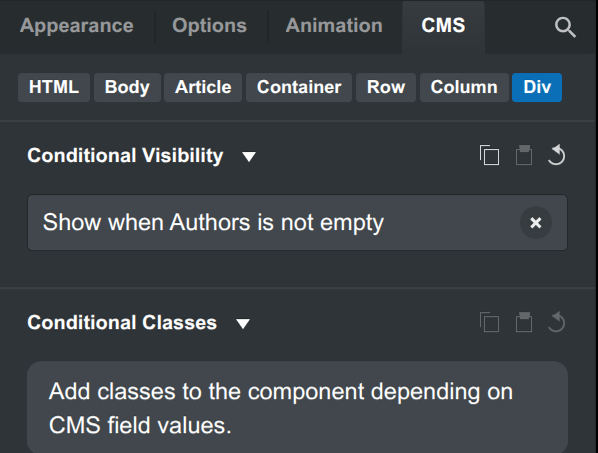
Conditional Visibility shows or hides a component depending on the current item's fields. For example, you can show a "Featured" badge only on featured articles, or hide an author box when an article has no authors.
In the CMS panel, click Add Condition in the Conditional Visibility group. Choose whether the condition shows or hides the component, then pick a field, an operator and a value.
The operators depend on the field type:
- Text, Long Text, URL, Email, Phone:
is empty,is not empty,equals,does not equal,contains. - Number:
is empty,is not empty,equals,does not equal,is greater than,is less than. - Date:
is empty,is not empty,is before,is after. - Switch:
is true,is false. - Relation:
is empty,is not empty,has any of,has all of,has none of(compared to a list of items), andhas exactly,has more than,has fewer than(compared to a number of items).
You can add several conditions and choose whether all or any of them must match. To combine the two, add a group: for example, Featured is true AND (Tags has any of Food & Drink OR Tags has any of Architecture).
Hidden components are left out of the exported HTML of that item's page or loop item.
# Conditional Classes
Conditional Classes add CSS classes to a component depending on the current item's fields. For example, you can add border-primary to the card of a featured article, so it stands out in the list.
In the CMS panel, click Add Class in the Conditional Classes group, enter the Class Name, and add the conditions that must match. The conditions work the same way as in Conditional Visibility. You can add several classes, each with its own conditions.
# Pages as Content
Collections aren't the only source of content. A CMS Loop can also list the pages in a folder of your design, which is handy for a blog or a portfolio where every post is designed as its own page. Set the loop's Source to Folder and pick the folder. See CMS Loop sources.
# Page CMS Options
Each page has CMS Options, which play the role of an item's fields when the page is listed in a loop. Right-click a page in the Design panel, choose Properties and open the CMS Options tab.
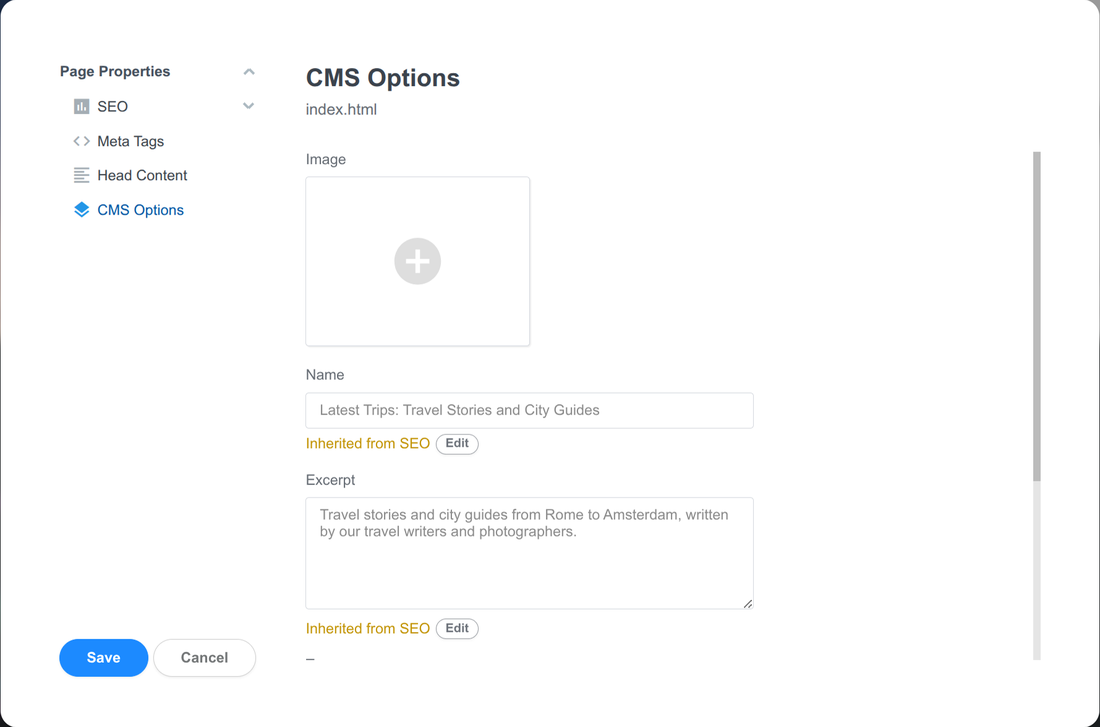
- Image: The page's cover image. If it's empty, the page's Open Graph or Twitter image is used.
- Name: The page's title. If it's empty, the title from the page's SEO settings is used.
- Excerpt: A short description. If it's empty, the page's meta description is used.
- Tags and Authors: Pick items from your Tags and Authors collections. Create these collections first, from the examples in the Design panel (right-click CMS,
New,Tags CollectionorAuthors Collection). - Date: The publication date, used for sorting.
- Show in Loop: Turn it off to leave the page out of CMS Loops. Pages hidden from export are always left out.
Components on the page itself can be bound to these options too, so a post's heading and cover image can show its Name and Image.