
# Collections
Collections hold the content of your website. A collection is a list of items that share the same fields, like the rows of a spreadsheet. A blog could have an Articles collection, where every article has a name, a date, an image and some text, plus Tags and Authors collections.
This page explains how to create collections, edit their items and generate a page for each item. To learn how to show the content on your pages, read Showing Content and CMS Components.
# Create a Collection
Collections are listed in the CMS group of the Design panel. To create one, right-click the CMS group and choose New. You can create a blank collection, or start from one of the examples:
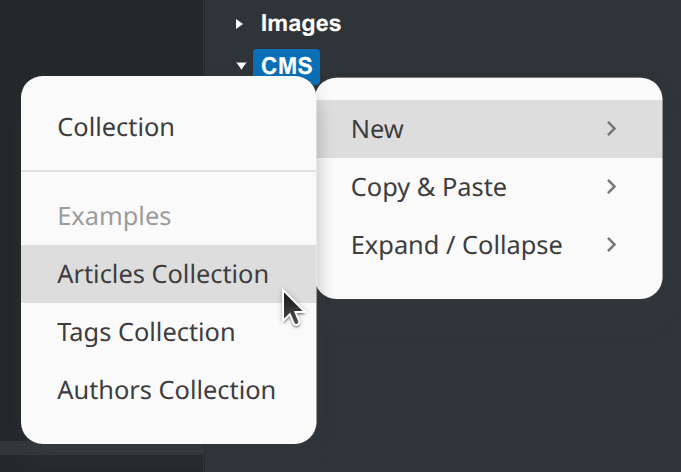
- Articles Collection comes with an Excerpt (Long Text), a Content (Markdown) and a Date field.
- Tags Collection has only the system fields, so each tag has a name and a slug.
- Authors Collection comes with a Photo (Image) and a Bio (Long Text) field.
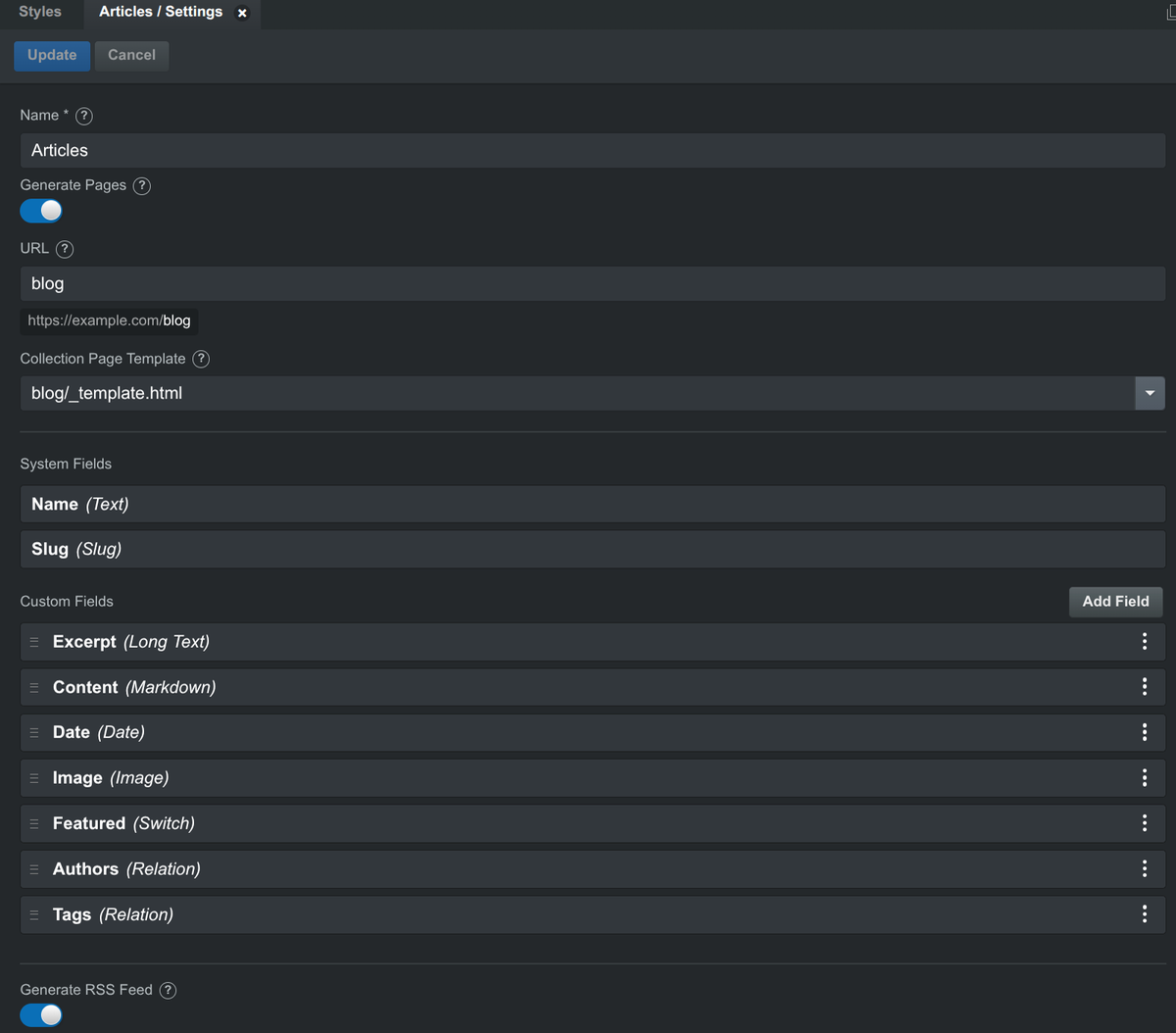
The collection settings open in the Editor panel at the bottom of the window. Give the collection a name, add the fields you need and click Create. You can change the settings later by right-clicking the collection and choosing Edit Collection.
The collection's right-click menu also lets you rename, duplicate, copy and paste (including between designs), and delete it, and import or export its items as CSV.
# Fields
Every collection has two system fields:
- Name is the item's title. It is required.
- Slug is the item's unique handle, used in its page URL and in URL query parameters. It is generated from the name, and you can edit it.
Each item also has a Show in Sitemap switch, which you can turn off to leave the item's page out of the generated sitemap.xml, and a Created At date.
Below them are your custom fields. Click Add Field and choose a type:
| Type | Use it for |
|---|---|
| Text | Short text, like a subtitle or a city. |
| Long Text | Multiple lines of plain text, like an excerpt or a bio. |
| Markdown | Formatted text, like the body of an article. Shown with the Markdown component. |
| Date | A date, with an optional time. |
| Image | An image from your design. |
| Number | A number, like a price or a rating. |
| URL, Email, Phone | Links, email addresses and phone numbers. |
| Switch | An on/off value, like "Featured". |
| Relation | Links to items in another collection. See Relations. |
Each field has a name, an optional description that is shown as a tooltip in the item editor, and settings that depend on its type: a default value, Required, Min Length and Max Length for text, Min and Max for numbers, and Include Time for dates. Drag fields by their handle to reorder them in the item editor.
# Relations
A relation field links an item to items in another collection, so you don't have to repeat the same data in every item. For example, an Articles collection can have a Tags relation to a Tags collection and an Authors relation to an Authors collection. Each article then picks its tags and authors from a list, and when you rename a tag, every article shows the new name.
To add one, choose Relation in the Add Field menu and pick the Target Collection. A relation can hold any number of items.
Relations work in both directions. Besides the articles' tags, you can also list the articles that have a given tag. This is called a reverse relation, and it is how you build tag or author pages. See Looping Relations.
# Editing Items
Click a collection in the Design panel to open its items in the Editor panel.
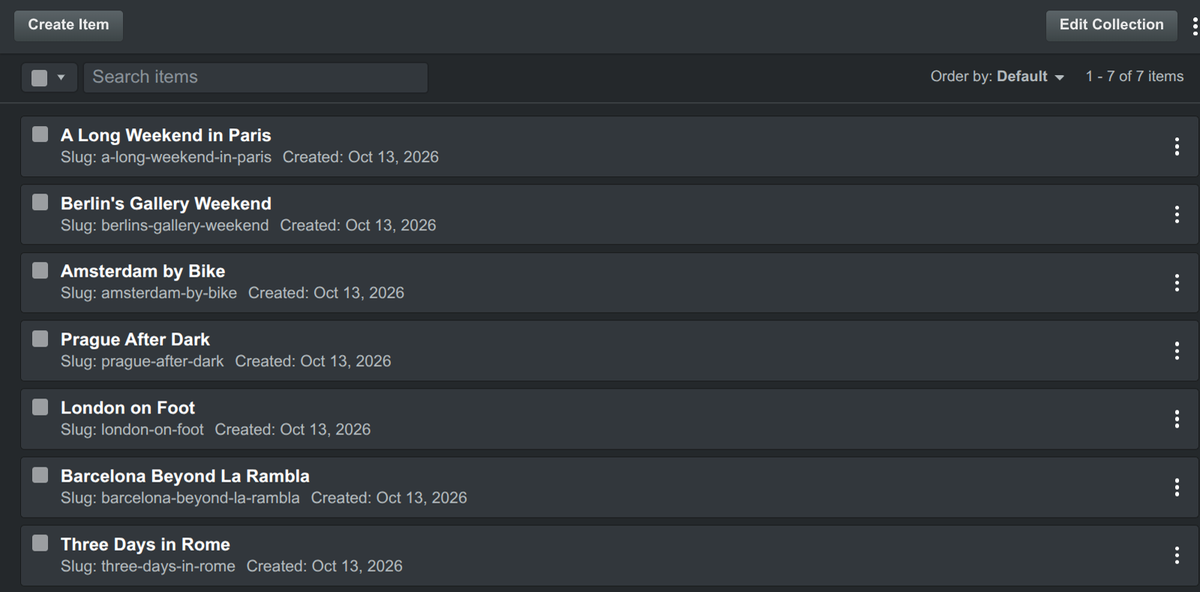
- Click
Create Itemto add an item, or click an item to edit it. PressUpdateto save your changes. - Search the items, and sort them with the
Order bydropdown. - Select items with their checkboxes to duplicate or delete several at once.
- The ⋮ menu has
Import CSVandExport as CSV.
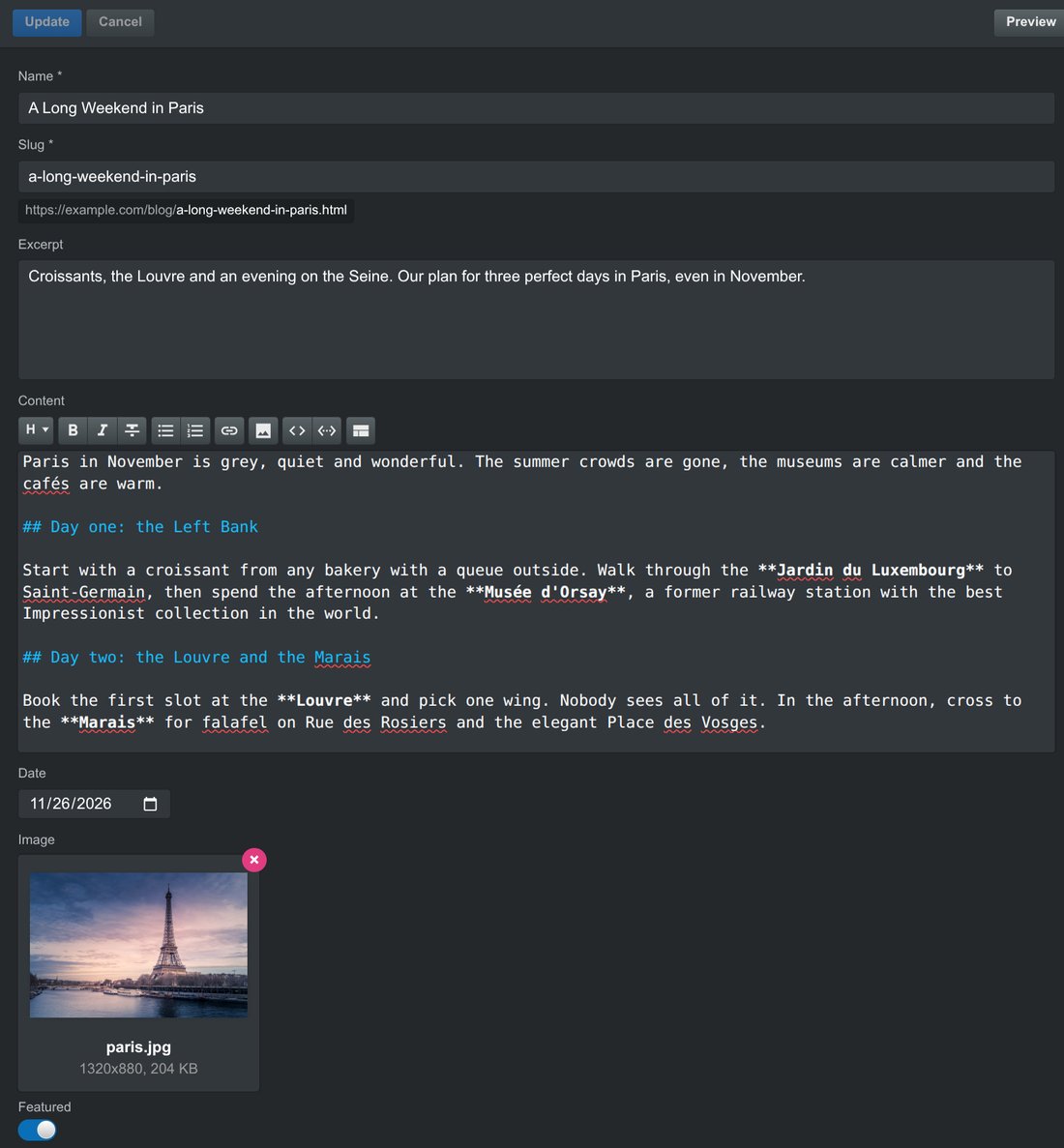
The item editor shows a form with the item's fields. If the collection generates pages, the Preview button opens the item's page on the stage.
# Importing from CSV
You can import items from a CSV file, for example one exported from a spreadsheet or another CMS. The first row holds the column names, which are the IDs of the fields: usually the field name in lowercase with underscores instead of spaces, like name, excerpt or cover_image. Export a CSV to see the exact column names. Columns that don't match a field are ignored. Include an id column to update existing items instead of adding new ones.
- Relations are written as a comma-separated list of the linked items' IDs, for example
city-breaks,food-and-drink. - Images are written as the image's file name in your design, for example
paris.jpg. Import the images into your design first. - Dates are written as
YYYY-MM-DD.
Before anything changes, the import dialog shows which items will be added, updated or skipped, and the errors in each row.
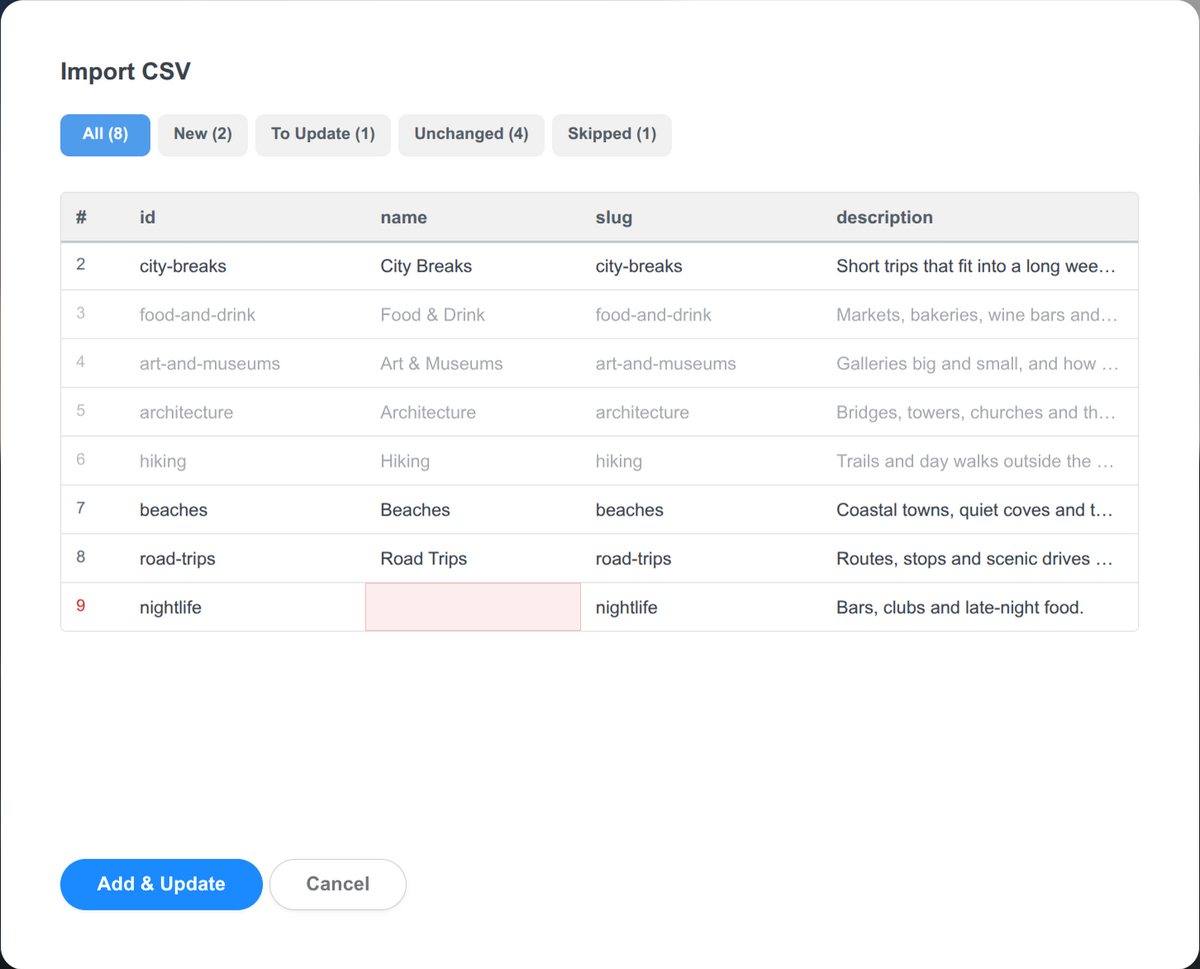
Add & Update adds new items and updates existing ones. When the collection has items that aren't in the file, a Replace All button also appears, which deletes them.
TIP
The easiest way to get a correctly formatted file is to add a couple of items by hand and use Export as CSV. Then fill in the rest in a spreadsheet and import it back.
# Generating Pages
A collection can generate a page for each of its items, like a page for every blog post or product. You design one page, the collection page template, and Bootstrap Studio renders it once per item when you export or publish your website.
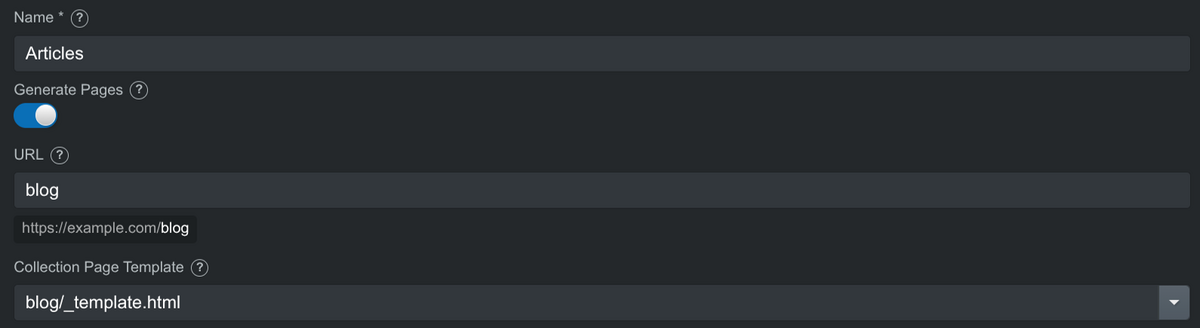
To set it up, open the collection settings and fill in these options:
- Generate Pages: Turn it on to render a page for each item.
- URL: The folder the pages are generated into. With the URL
blog, an item with the slugparisgets the address/blog/paris.html. Leave it empty to generate the pages in the root of your website. - Collection Page Template: The page from your design that renders the items. Pick it from the dropdown, which lists the pages in your design.
# The Collection Page Template
The template is a regular page in your design. We recommend placing it in the collection's URL folder and naming it _template.html, for example blog/_template.html for a collection with the URL blog. This keeps it next to the pages it generates and makes it easy to spot in the Design panel, where template pages are marked with a special icon.
On a template page, components can be bound to the fields of the current item. The stage shows one item at a time, and you can switch between them from the dropdown in the stage toolbar, to check how the page looks with different content.
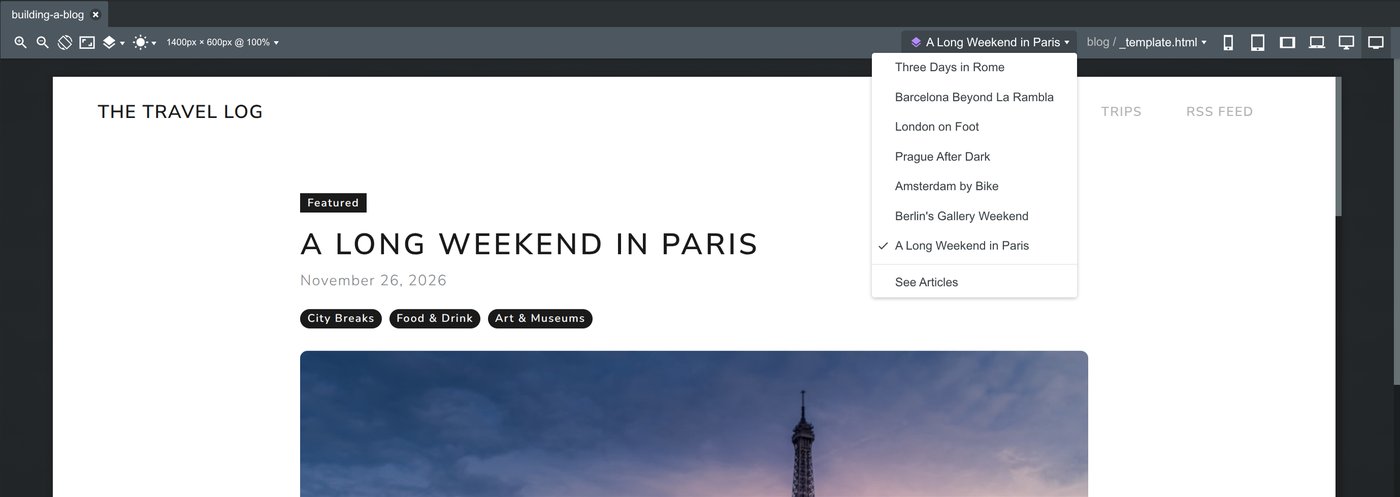
The template page itself is not exported, only the pages generated from it. A page can be the template of only one collection, and it can't be hidden from export.
# Override Pages
Sometimes one item needs a page of its own, with a layout that differs from the template. To do this, create a regular page at the item's generated address, for example blog/paris.html. It replaces the generated page for that item only, and its components can still be bound to the item's fields.
# RSS Feed
Collections that generate pages can also generate an RSS feed, so visitors can subscribe to your new items in a feed reader. Turn on Generate RSS Feed in the collection settings, and optionally fill in the Feed Title, Feed Description and Feed Image.
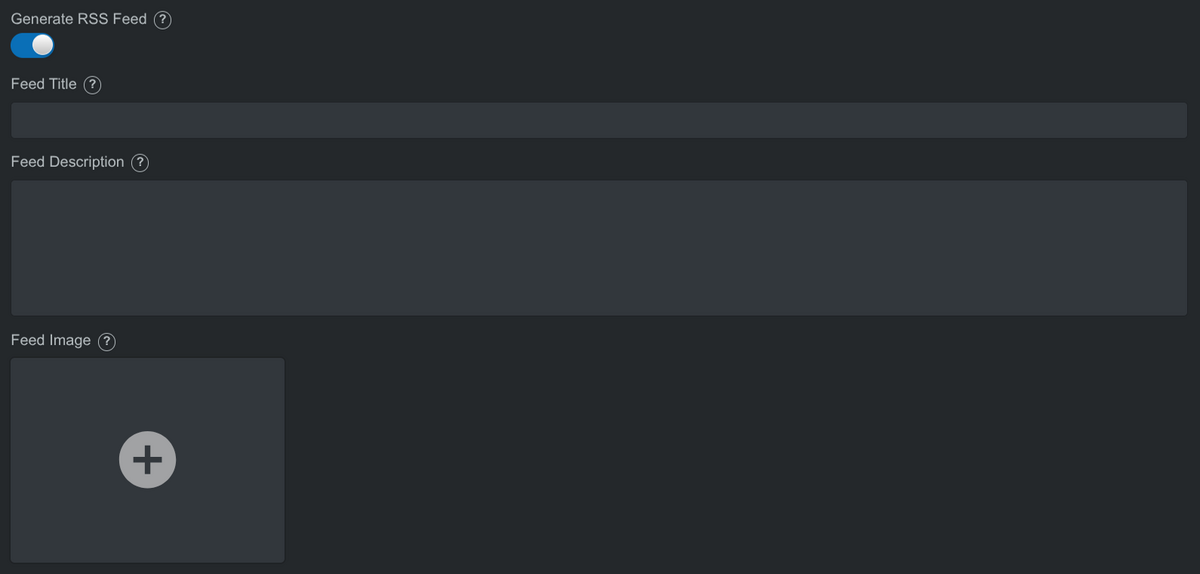
The feed is exported as rss.xml in the collection's URL folder, for example /blog/rss.xml. Each item's page is added to the feed with its name, description and date.
Note
Feed readers need absolute URLs. Set your website's address in the Website URL field of the design's SEO settings, so the links in the feed include your domain.