
# CMS Components
The CMS components show your collections on the page. CMS Loop lists items, and CMS Nav builds a menu from a collection that visitors can use to filter a loop. You can find them in the CMS group of the Component panel.
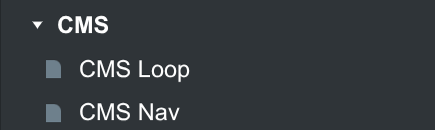
This page documents their options, and ends with examples of common setups.
# CMS Loop
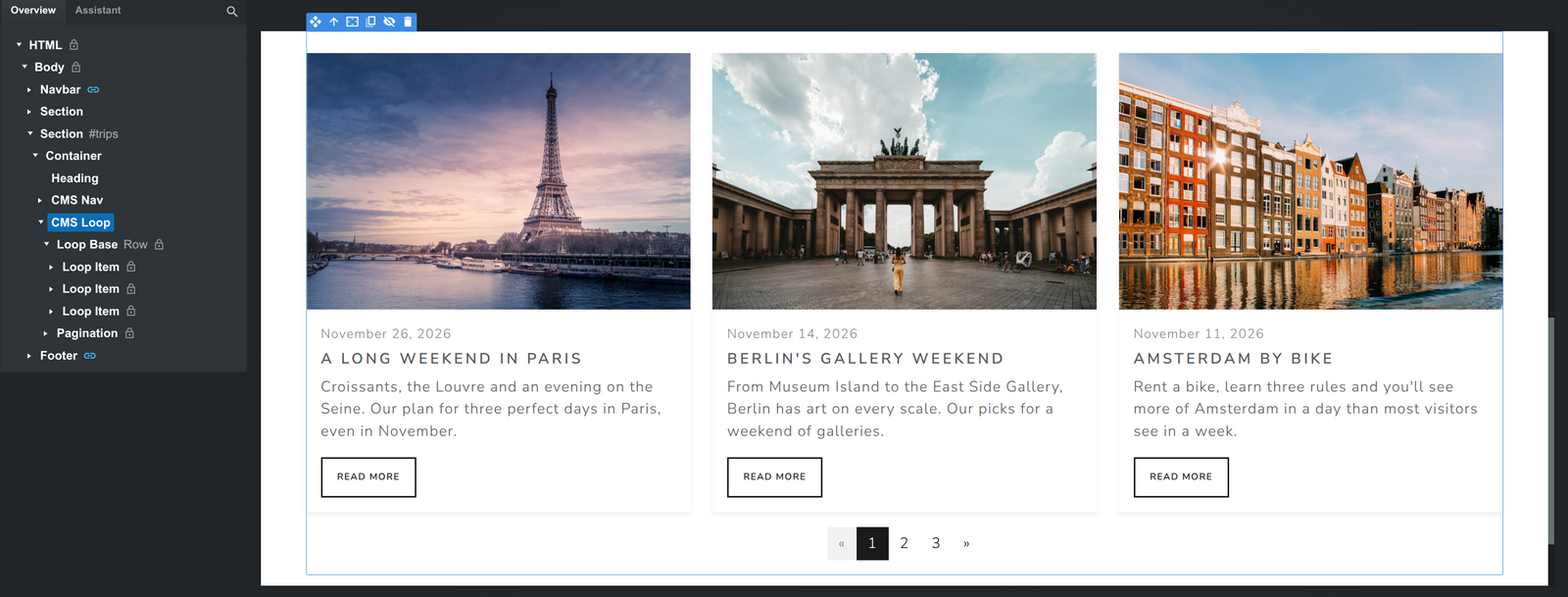
The CMS Loop repeats a piece of HTML for every item in a collection. You design one loop item, for example a card with an image, a title and a short excerpt, and bind its components to the item's fields. Every other item in the loop is a copy of it, so a change to any item applies to all of them.
Like the rest of the CMS, the loop is rendered to static HTML when you export, so the items are part of the page and visible to search engines.
To build a loop, drop a CMS Loop on the page and pick its Source Collection. Then design the loop item, or drag existing components into it. Dragging a ready-made card into the loop item is a quick way to turn a static design into a dynamic one.
# Source
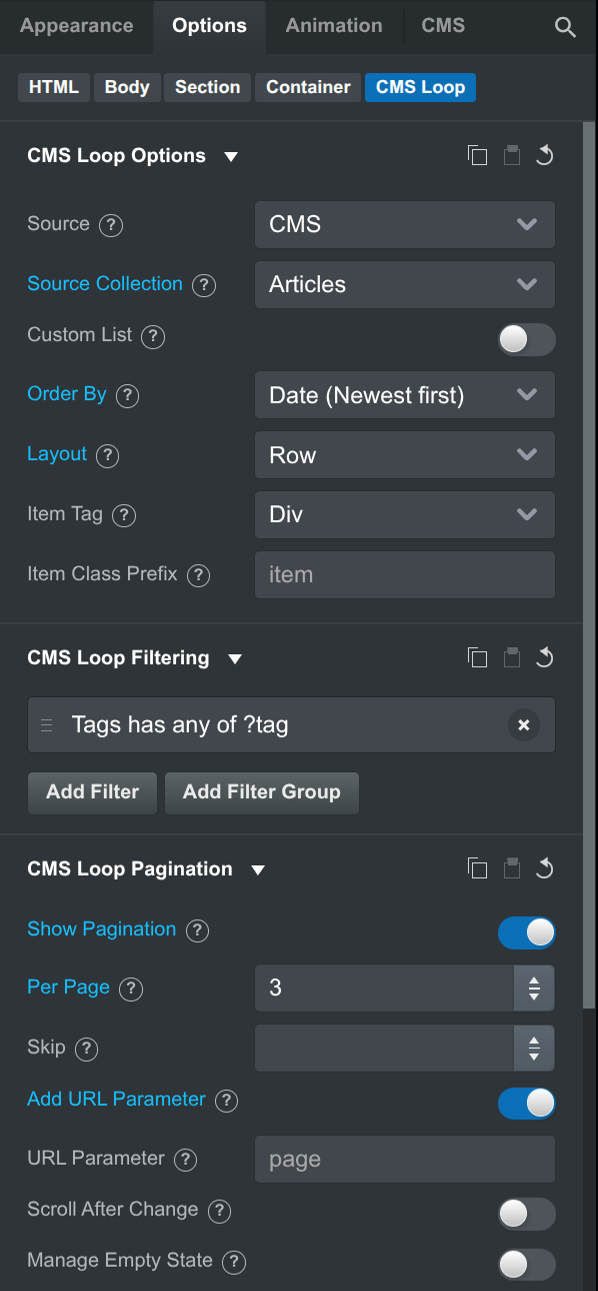
- Source: Where the items come from.
CMSloops the items of a collection.Folderloops the pages in a folder of your design, as if they were collection items. Their fields are the page CMS Options.
- Source Collection: The collection to loop. Besides your collections, the dropdown lists the relations of the current item, so on a blog post template you can loop the post's tags. See Looping Relations.
- Source Folder: The folder to loop, when the source is
Folder. Scan Subfolders includes pages in nested folders, and Exclude Current Page leaves out the page the loop is on. - Custom List: Pick the items to show by hand, in the order you want, instead of showing the whole collection. The list appears in the
CMS Loop Itemsgroup. - Exclude Current Item: Leaves out the item the loop is shown for: the item of the page it's on, or of the loop item it's nested in. Use it for a list of related items, so the current post doesn't show up among them. It's available when the loop's collection is the same as the current item's.
- Order By: The field to sort the items by, like Date (Newest first) or Name (A → Z).
- Layout:
Defaultrenders the items as plaindivs, which you can style freely.Rowrenders a Bootstrap row with a column for every item, so you can set how many items fit in a row at each breakpoint from the Loop Base Row's options. - Item Tag: The element each item is rendered as:
Div,SpanorLink. - Link To: When the item tag is
Link, where the items link to.Item Pageopens the item's generated page.Custom URLopens theTarget URL, with the item's slug added as a URL query parameter, liketrips.html?tag=architecture. - Item Class Prefix: Every item gets classes based on this prefix, like
item-parisfor an item with the slugparis, which you can use for styling.
TIP
A link can't contain another link. If the items are links, don't put links or buttons with URLs inside them.
# Filtering
The CMS Loop Filtering group lets you choose which items the loop shows, with conditions like Featured is true or Tags has any of Architecture. Click Add Filter, then pick a field, what to compare it to, and an operator.
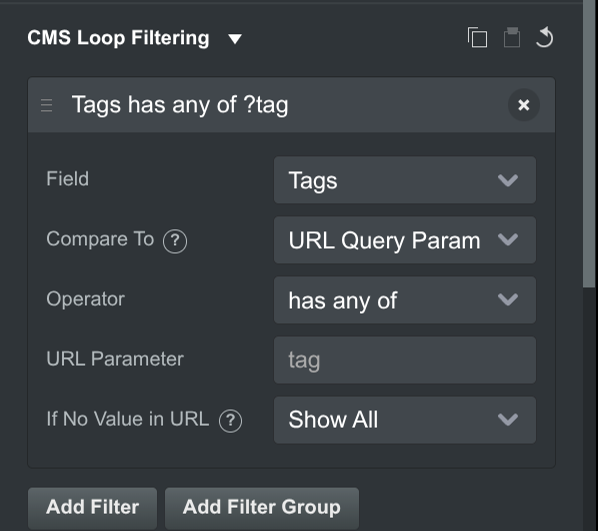
Compare To has three options:
- Value: A value you enter, like a date or a list of tags. The condition is applied when the page is exported.
- URL Query Param: A value from the page's URL, like
?tag=architecture. Visitors can then filter the loop by following links to the page, for example from a CMS Nav. The name of the parameter is in theURL Parameteroption, and defaults to the field's name in singular, liketagfor a Tags field.If No Value in URLchooses what happens when the URL doesn't have it:Show Allignores the condition, andShow Empty Stateshows the loop's empty state. - Current Item: A field of the current item, the item of the page or of the loop item the loop is in. For example, show the articles that share a tag with the article on the page. This option appears where there is a current item, and lists the fields that are comparable with the chosen one.
The operators depend on the field type, and are the same as in Conditional Visibility.
When the loop has more than one filter, choose whether it should match all or any of them. Use Add Filter Group to mix the two, for example Featured is true AND (Tags has any of Food & Drink OR Tags has any of Architecture).
Note
Filters on URL query parameters run in the visitor's browser, so every item that could match is included in the exported page. Prefer Match all when you combine a fixed condition with a URL query parameter condition. With Match any, the fixed condition can't narrow the list down in advance, and every item of the collection has to be included.
# Pagination
The CMS Loop Pagination group controls how many items are shown.
- Limit: Show at most this many items. Leave it empty to show all of them.
- Skip: Skip this many items from the start. To show items 2 to 5, set
Skipto 1 andLimitto 4. - Show Pagination: Split the items into pages, with a pagination control below the loop. The pages are switched in the browser, without loading a new page.
- Per Page: The number of items per page (12 by default).
- Add URL Parameter: Adds the page number to the URL, like
?page=2, so visitors can link to a specific page and use the browser's back and forward buttons. URL Parameter sets its name. - Scroll After Change: Scrolls to the top of the loop when the visitor switches pages or filters the list.
# Empty State
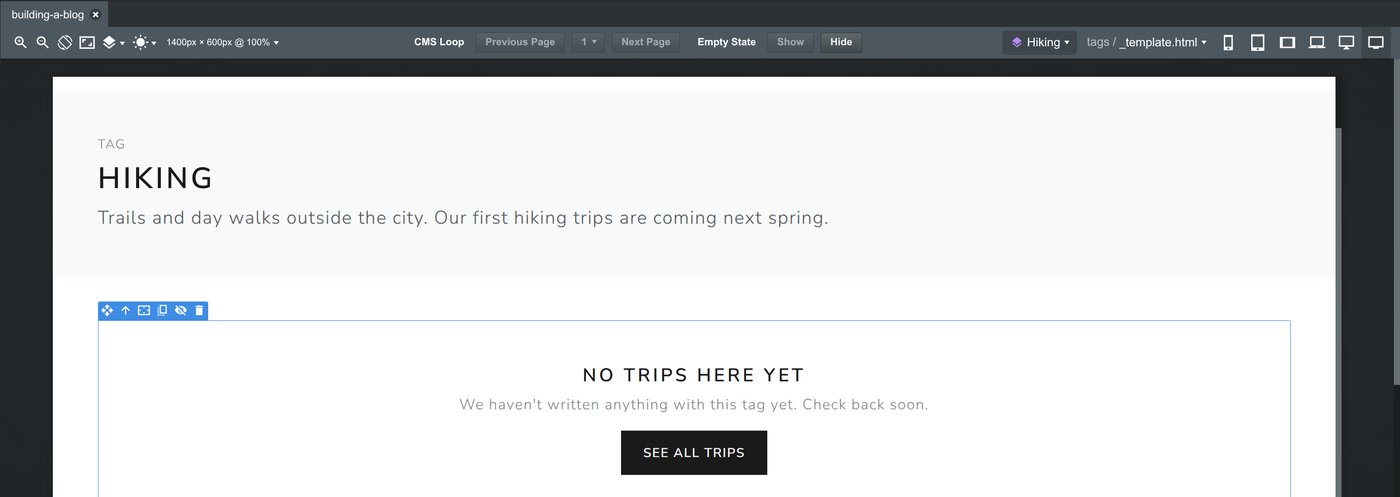
A loop can end up with no items, for example when a visitor filters it by a tag that has no posts, or on the page of an author who hasn't written anything yet. Turn on Manage Empty State to add an Empty State component to the loop. It's shown instead of the items whenever there are none.
On the stage, use the Empty State buttons in the toolbar to show or hide it while you design it.
# Looping Relations
On a page with a current item, the Source Collection dropdown also lists the item's relations:
- The item's own relation fields, like
Articles Item > Tagson an article's template page. The loop shows the tags of the article. This is how you show tag pills or an author box on a blog post. - Reverse relations, listed under
Linking to <Collection> Item, likeArticles (by their Tags field)on a tag's template page. The loop shows every article that has this tag. This is how you build tag and author pages.
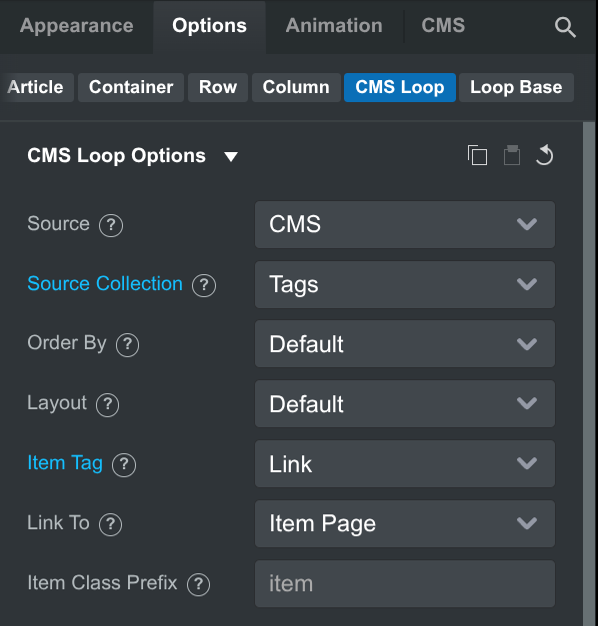
The same options appear inside the item of another CMS Loop, so a list of articles can show each article's tags. Loops can be nested one level deep.
# Loop Item and Loop Base
The loop's children are the Loop Base, which holds the items, and the Loop Item. Select the Loop Base to style the container of the items, for example with d-flex flex-wrap gap-2 to lay out a row of tag pills. With the Row layout, the Loop Base Row's options set how many columns are shown at each breakpoint.
# CMS Nav
The CMS Nav builds a menu from the items of a collection. Its most common use is filtering a CMS Loop: a list of tags above a list of articles, where clicking a tag shows only its articles.
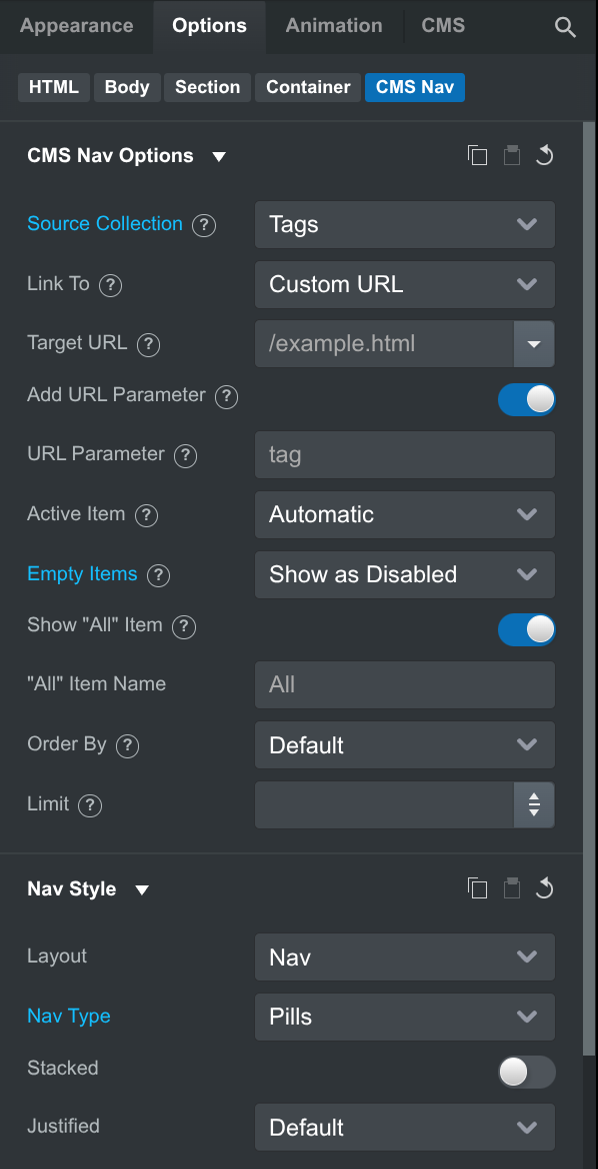
- Source Collection: The collection whose items make up the menu. Only collections that another collection links to with a relation field are listed. For example, if your Articles have a Tags relation, the Tags collection is available.
- Link To: Where the menu links go.
Custom URLopens theTarget URL, with the item's slug as a URL query parameter, like?tag=architecture. LeaveTarget URLempty to link to the current page, so the menu filters a loop on the same page. Set the loop's filter to compare to the same URL query parameter.Item Pageopens the item's generated page, like the tag's own page.
- Add URL Parameter and URL Parameter: Whether to add the slug to the Target URL, and the parameter's name. It defaults to the collection's name in singular, like
tag. - Active Item: The highlighted item.
Automatichighlights the item matching the URL query parameter, or the current page. - Empty Items: What to do with items that no other item links to, like a tag with no articles:
Show,HideorShow as Disabled. - Show "All" Item: Adds an "All" link at the start of the menu, which clears the filter. You can change its name, and with
Item Pagelinks, its URL. - Order By: How to sort the items.
Usagesorts them by the number of items linking to them, so the most used tags come first. - Limit: The maximum number of items. The "All" link isn't counted.
The Nav Style group has the regular Nav options, like Pills or Tabs. Set Layout to Custom to style the menu yourself.
A CMS Nav can't be placed inside a CMS Loop.
# Examples
The examples below come from the travel blog built in our video lesson. The design has an Articles collection with Tags and Authors relations.
# Featured Item
To show the newest featured article in a large card at the top of the homepage:
- Add a CMS Loop with the Articles collection as its source.
- Set
Order Byto Date (Newest first). - Add a filter: Featured is true.
- Set
Limitto 1.
# Filtering by Tag
To let visitors filter a list of articles by tag:
- Add a CMS Loop over Articles. Turn on
Show PaginationandAdd URL Parameter. - Add a filter on the Tags field, with
Compare Toset toURL Query Paramand the operator has any of. The loop now reads the tag from the?tag=parameter. - Add a CMS Nav above the loop, with Tags as its source and
Link Toset toCustom URL. Leave theTarget URLempty. Its links add?tag=<slug>to the current page. - Set
Empty ItemstoShow as Disabled, so tags without articles can't be clicked.
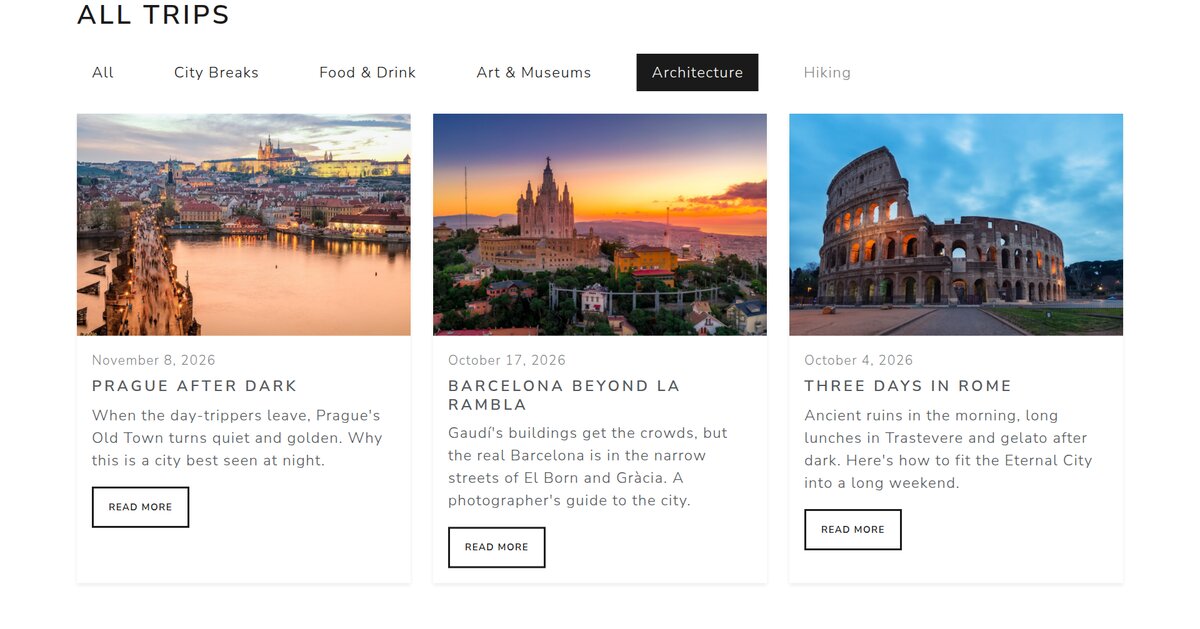
Here is the result in the exported website, opened with ?tag=architecture. Hiking has no articles, so it's disabled.
# Related Items
To show three other articles with a tag in common at the end of each article:
- On the Articles template page, add a CMS Loop over Articles.
- Add a filter on Tags, with
Compare Toset toCurrent Item → Tagsand the operator has any of. - Turn on
Exclude Current Item, setOrder Byto Date (Newest first) andLimitto 3.
Without the filter, the loop shows the three newest articles, which is a simple "More Articles" section.
# Tag and Author Pages
To give every tag a page that lists its articles:
- In the Tags collection settings, add a
Descriptionfield of typeLong Text, then fill it in for each tag. - Turn on
Generate Pagesand picktags/_template.htmlas the template. - On the template page, bind a heading to the tag's Name and a paragraph to its Description.
- Add a CMS Loop and set its source to
Articles (by their Tags field), under Linking to Tags Item. - Turn on
Manage Empty Stateand design the message shown for tags without articles.
Author pages work the same way, with the loop sourced from Articles (by their Authors field).
# Tags on Each Article
To show an article's tags as links to their tag pages:
- On the Articles template page, add a CMS Loop and set its source to
Articles Item > Tags. - Put a Badge in the loop item and bind its text to the tag's Name.
- Set
Item TagtoLinkandLink TotoItem Page. - Add
d-flex flex-wrap gap-2to the Loop Base to space out the badges.